Robert Rutherford



Task Master


Task Master is a task management software created by Spiff Industries for standard desktop browsers available at https://spiffindustries.com/taskmaster/. It allows the user to easily create, edit, and check off tasks that can be optionally descriptive. The level of detail is up to the user. It employs the principles of importance and urgency as described in The 7 Habits of Highly Effective People® by Steven Covey. This software attempts to bring that system of efficiency to the 21st century.
Table of Contents
Background
TaskMaster was released as an Android app on Google Play in 2020. It was not successful and had many development problems that made it difficult to create new versions. Although visually appealing, the tasks themselves had too much granularity for importance and urgency to make it practical. This version of TaskMaster attempts to simplify the process and broaden the market. It introduces the use of cookies and user accounts and is deployed on the spiffindustries.com AWS server. Once this release is stable, the next version will introduce Android and iPhone apps that can employ the same user accounts.
Install
1. Install Python
Task Master is developed against Python 3.12. The repository includes a runtime.txt file that pins the same version, so using Python 3.12 locally is the safest choice.
If you need to install Python, follow the instructions for your operating system from python.org. On Linux, make sure python3 and pip are available before continuing.
2. Create a virtual environment
Create a project directory and a virtual environment, then activate it:
python3 -m venv .venv
source .venv/bin/activate
If your system uses a different Python command, replace python3 with the correct executable.
3. Install pip and the project dependencies
Make sure pip is available, then install the required packages from requirements.txt:
python -m pip install --upgrade pip
python -m pip install -r requirements.txt
The project depends on Django, django-crispy-forms, crispy-bootstrap4, psycopg2-binary, requests, resend, and whitenoise, so installing from the requirements file is the easiest way to keep everything aligned.
If you prefer to install packages individually, the core pieces are:
python -m pip install Django
python -m pip install django-crispy-forms
python -m pip install crispy-bootstrap4
python -m pip install psycopg2-binary
python -m pip install requests
python -m pip install resend
python -m pip install whitenoise
4. Install Django
Django is already listed in requirements.txt, so the pip install -r requirements.txt step above is normally enough. If you are setting up the environment manually, install Django first and then the rest of the packages.
5. Download the project files from GitHub
Clone the repository into your workspace directory:
git clone https://github.com/rbrutherford3/Task-Master.git .
If you are updating an existing checkout, pull the latest changes instead of removing files manually.
If you prefer to deploy instead of running locally, Vercel is also an option. The repository includes a vercel.json file for that workflow.
6. Configure local_settings.py
The project reads local secrets and database settings from local_settings.py if the file exists. Create it in the project root and define the values your environment needs.
RESEND_API_KEY = "your-resend-api-key"
RECAPTCHA_SITE_KEY = "your-recaptcha-site-key"
RECAPTCHA_SECRET_KEY = "your-recaptcha-secret-key"
DATABASE_URL = "postgresql://user:password@localhost:5432/taskmaster"
DATABASE_URL can point to PostgreSQL or MySQL. If it is omitted, the project falls back to SQLite for local development. PostgreSQL support uses psycopg2-binary; if you use MySQL, install the appropriate MySQL driver for your environment.
If you deploy on Vercel, the same values from local_settings.py should be entered as environment variables in the Vercel project settings.
7. Finish the Django setup
Run the Django database setup commands and start the development server:
python manage.py makemigrations
python manage.py migrate
python manage.py runserver
Open your browser and navigate to http://127.0.0.1:8000/.
If you want to use a different timezone, update TIME_ZONE in taskmaster_site/settings.py. The project currently defaults to America/New_York.
Usage
Go to TaskMaster in your browser
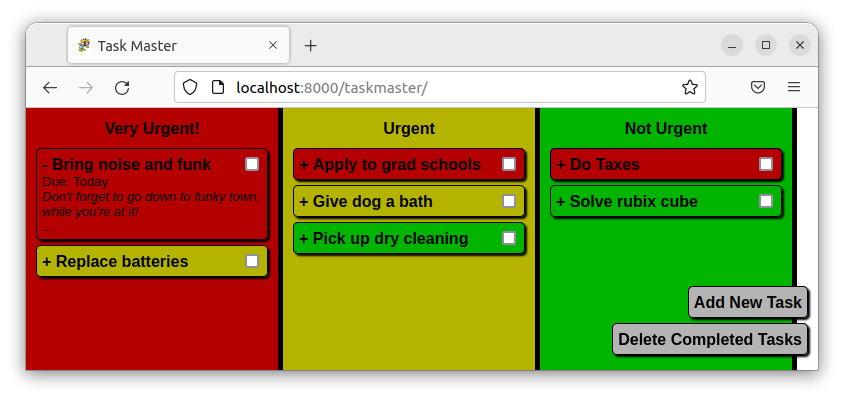
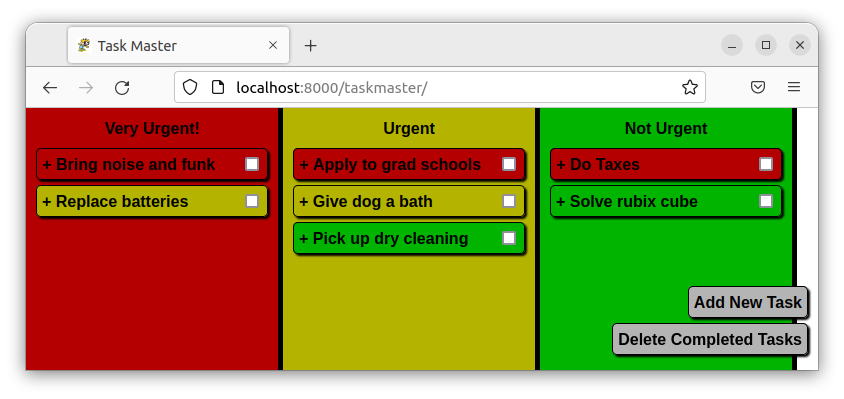 Click/tap a task’s text to see details
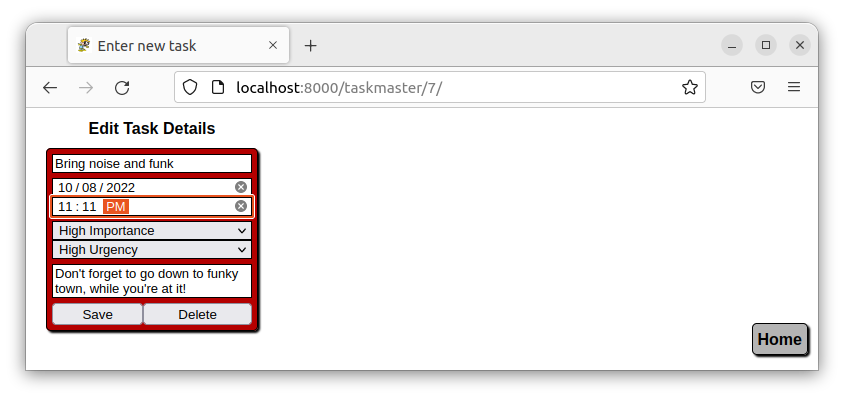
 Click/tap the ellipses to edit the task.
 Click/tap “Save” to modify that task (or “Delete” to remove it)
 Click/tap the checkbox to indicate that a task is complete
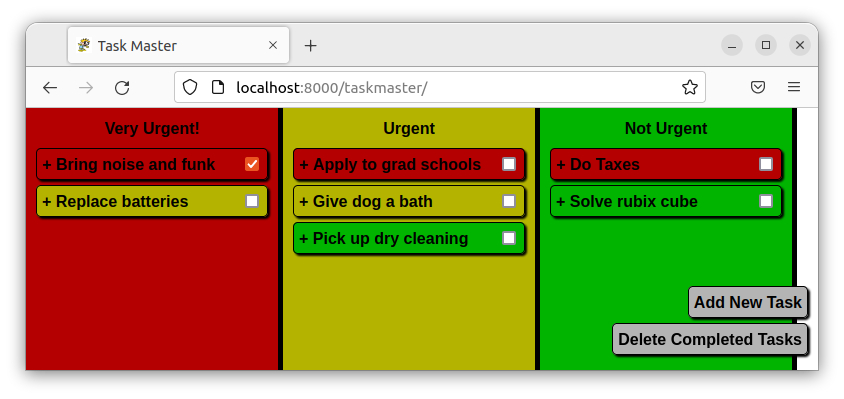 Click/tap “Delete Completed Tasks” to purge all tasks that are finished but still visible (note: this will permanently delete the tasks)
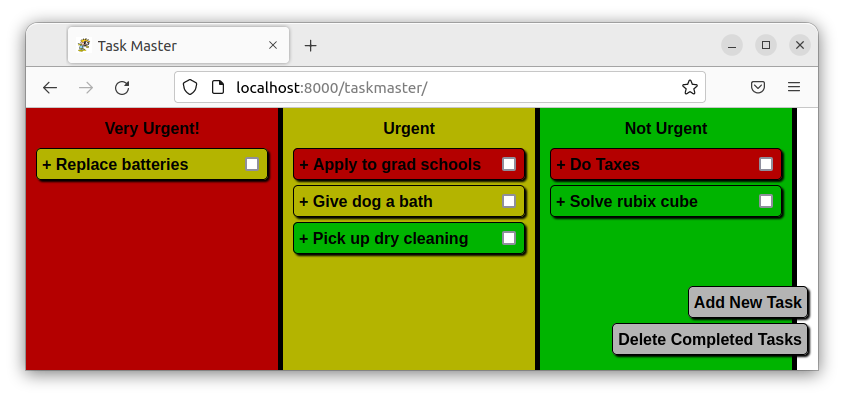 Click/tap “Add New Task” to create another one

Contributing
Contributions are welcome, including any feedback. Please contact rbrutherford3 on GitHub.
License
Acknowledgments
- Thanks to my parents for everything
- Thanks to my sister for this computer
- Thanks to Colby Sainato for actually looking at this
- Thanks to Kendall Griffith for also actually looking at this :)